> ## Documentation Index
> Fetch the complete documentation index at: https://easycode.mintlify.site/llms.txt
> Use this file to discover all available pages before exploring further.
# Installation
> Set up EasyCode Flow.
EasyCode Flow is an **IDE for vibe coders**. Unlike web based app builders, EasyCode Flow needs to be installed on your operating system.
This provides many benefits:
* you have full control of the development environment
* you have full ownership of the codebase
* you have full access to IDE features
## Download
This is a beta release. Please report any issues you encounter to help us improve the software.
M Series Macs
Not supported right now
1. Download the correct installer from above.
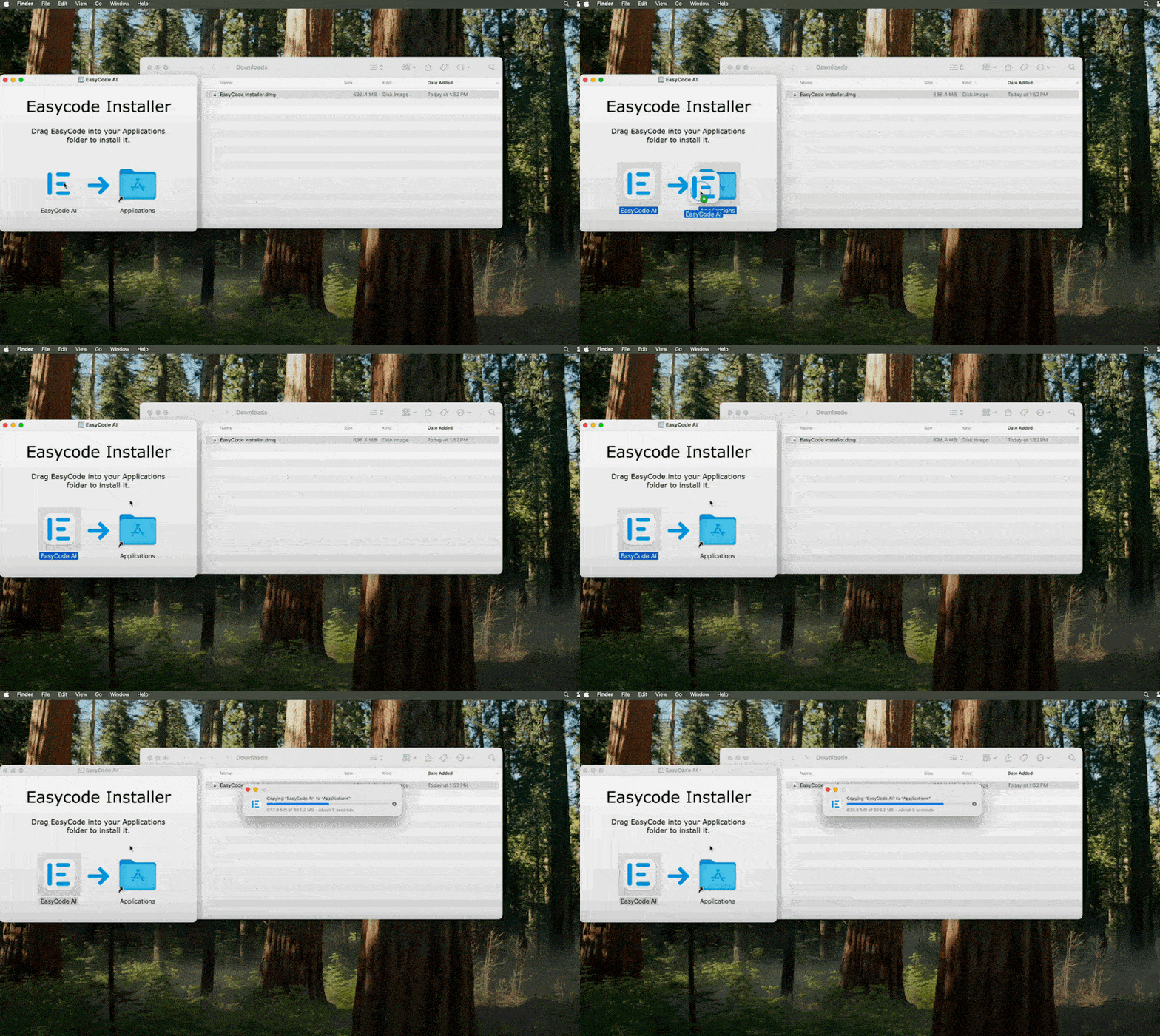
2. Open the installer, move EasyCode to the Applications folder.
3. Open EasyCode.
 ## Initial Set Up
EasyCode requires **NodeJS** and **Git** to function properly.
## Initial Set Up
EasyCode requires **NodeJS** and **Git** to function properly.
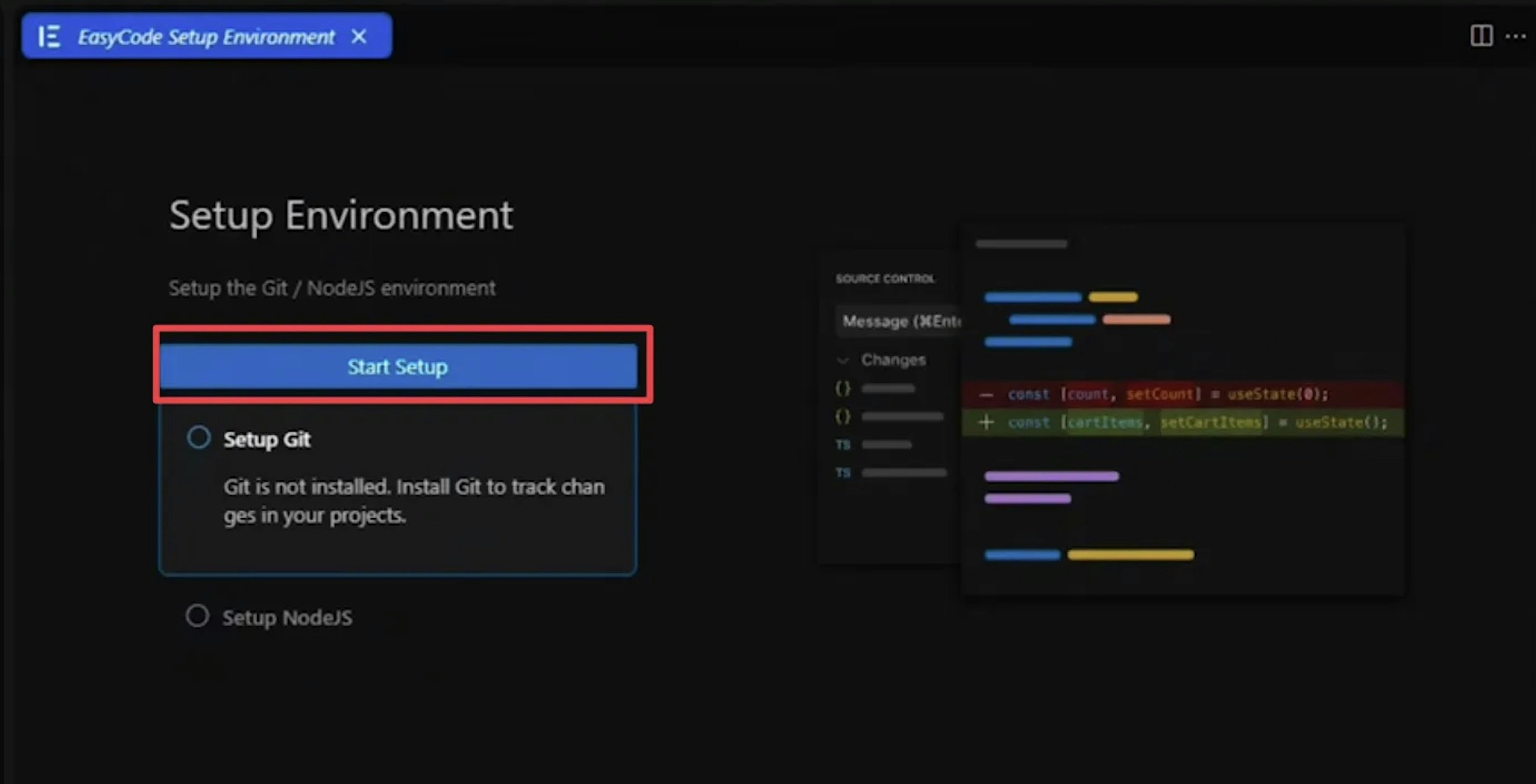 If they are not installed, EasyCode will guide you through the installation.
During Git installation, you will asked to include `xcode-select`, make sure to **Accept**. This step will take 5-10 minutes but is the only official to install **Git**.
If they are not installed, EasyCode will guide you through the installation.
During Git installation, you will asked to include `xcode-select`, make sure to **Accept**. This step will take 5-10 minutes but is the only official to install **Git**.
 Most Win 10/11 devices
Not supported right now
1. Download the correct Windows installer from above.
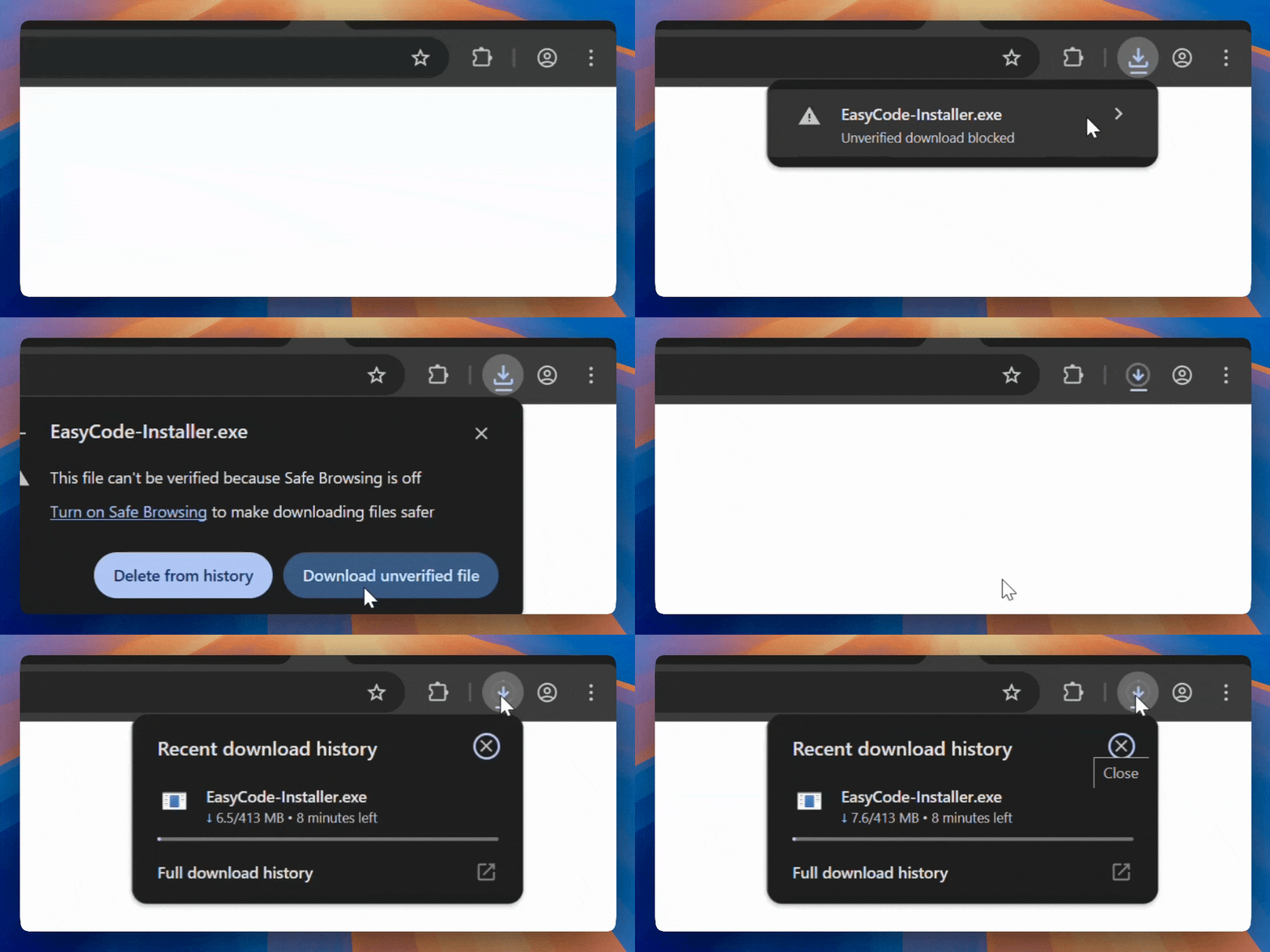
You may need to bypass Browser security to download the file.
2. Bypass Windows Security if necessary.
3. Open the installer and follow the instructions.
## Initial Set Up
EasyCode requires **NodeJS** and **Git** to function properly.
If they are not installed, EasyCode will guide you through the installation.
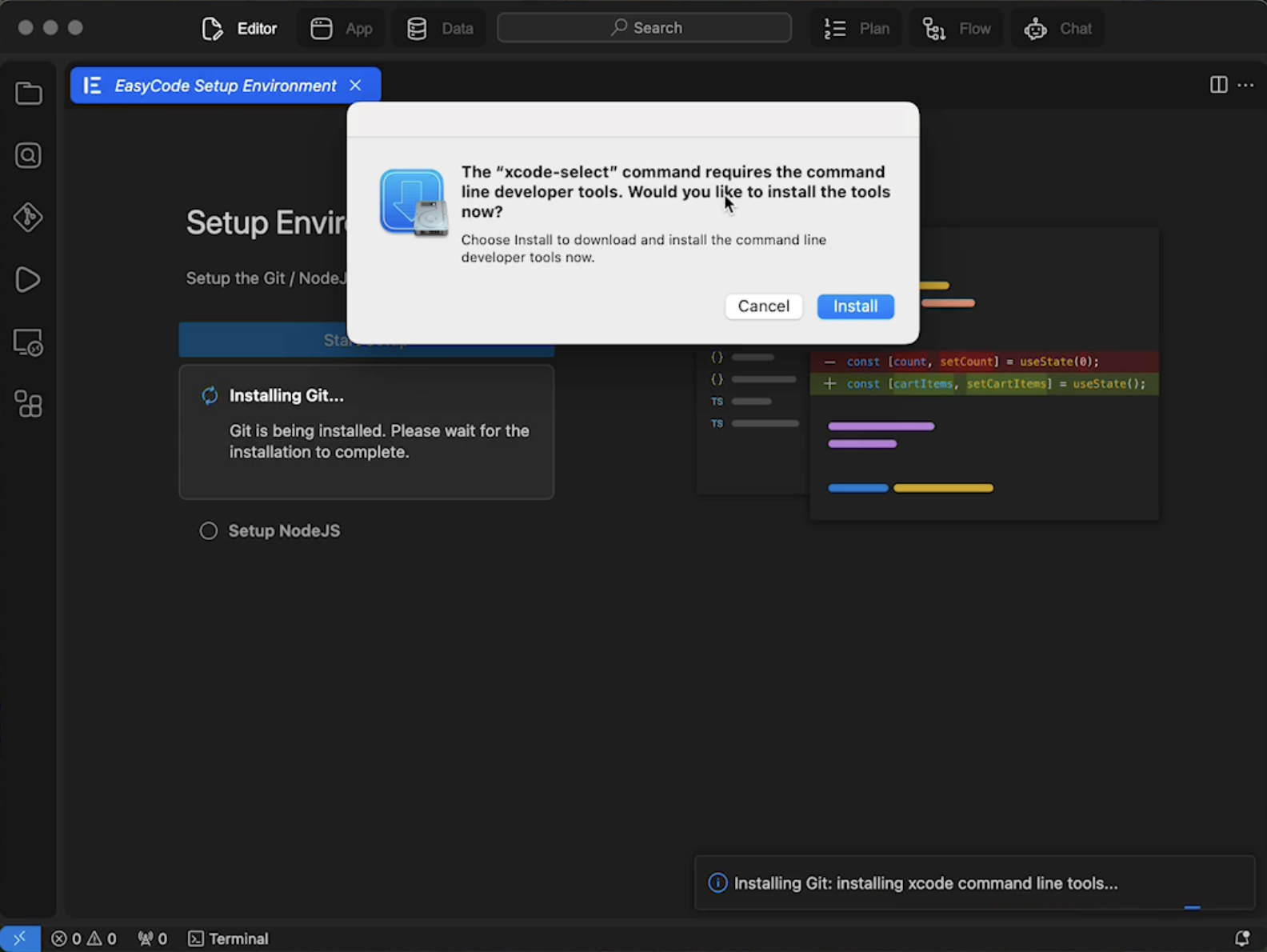
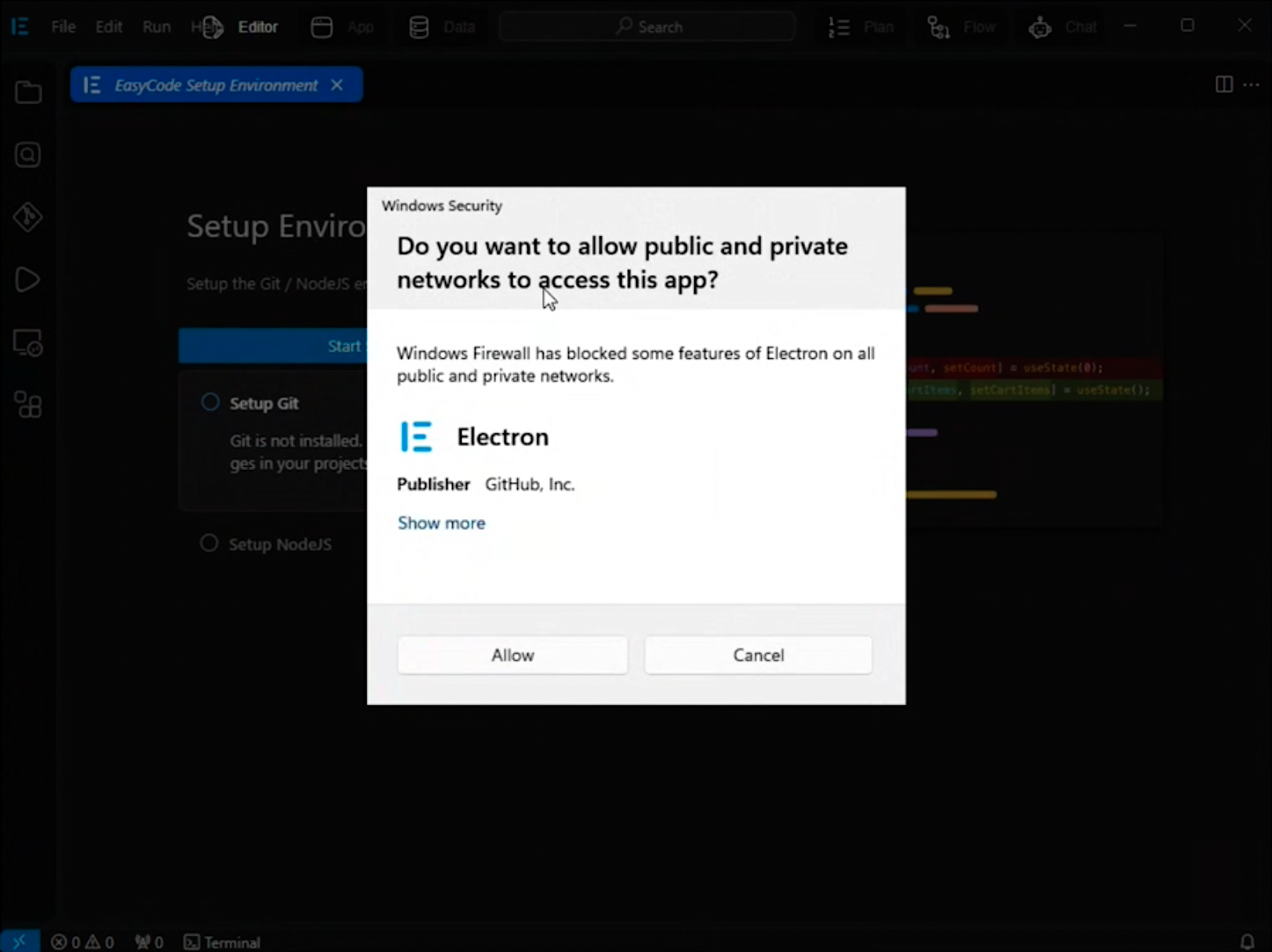
You will be prompted to give `Electron` and `NodeJS` network access during installation, make sure to **Accept**.
Most Win 10/11 devices
Not supported right now
1. Download the correct Windows installer from above.
You may need to bypass Browser security to download the file.
2. Bypass Windows Security if necessary.
3. Open the installer and follow the instructions.
## Initial Set Up
EasyCode requires **NodeJS** and **Git** to function properly.
If they are not installed, EasyCode will guide you through the installation.
You will be prompted to give `Electron` and `NodeJS` network access during installation, make sure to **Accept**.
 Linux is currently not supported.
## Common Installation Problems
**Step 1: Check for browser notifications**
Some browsers can silently block large files or ask for download permission. Check for any browser notifications.
Linux is currently not supported.
## Common Installation Problems
**Step 1: Check for browser notifications**
Some browsers can silently block large files or ask for download permission. Check for any browser notifications.
 **Step 2: Try a different browser**
Some users who use Brave or Arc have reported issues with downloading the installer. Try using Chrome or Safari.
**Step 3: Try direct download**
If you continue to experience issues, you can try downloading directly from these links:
* [Windows x64 Installer (Direct Download)](https://update.easycode.ai/download/stable/b1f034d572336bd0f1c855c997973d52230612d4/EasyCode-Installer.exe)
* [Mac Silicon Installer (Direct Download)](https://update.easycode.ai/download/stable/b1f034d572336bd0f1c855c997973d52230612d4/EasyCode-Installer.dmg)
This is likely caused by NodeJS or Git not being installed correctly. If installation fails after multiple attempls, please try installing NodeJS and Git manually.
You can find the official NodeJS and Git installation instructions below:
* [NodeJS Official Download](https://nodejs.org/en/download)
* [Git Official Download](https://git-scm.com/downloads)
**Step 2: Try a different browser**
Some users who use Brave or Arc have reported issues with downloading the installer. Try using Chrome or Safari.
**Step 3: Try direct download**
If you continue to experience issues, you can try downloading directly from these links:
* [Windows x64 Installer (Direct Download)](https://update.easycode.ai/download/stable/b1f034d572336bd0f1c855c997973d52230612d4/EasyCode-Installer.exe)
* [Mac Silicon Installer (Direct Download)](https://update.easycode.ai/download/stable/b1f034d572336bd0f1c855c997973d52230612d4/EasyCode-Installer.dmg)
This is likely caused by NodeJS or Git not being installed correctly. If installation fails after multiple attempls, please try installing NodeJS and Git manually.
You can find the official NodeJS and Git installation instructions below:
* [NodeJS Official Download](https://nodejs.org/en/download)
* [Git Official Download](https://git-scm.com/downloads)