> ## Documentation Index
> Fetch the complete documentation index at: https://easycode.mintlify.site/llms.txt
> Use this file to discover all available pages before exploring further.
# Planning
> Planning before implementation increases code quality and prevents unnecessary errors.
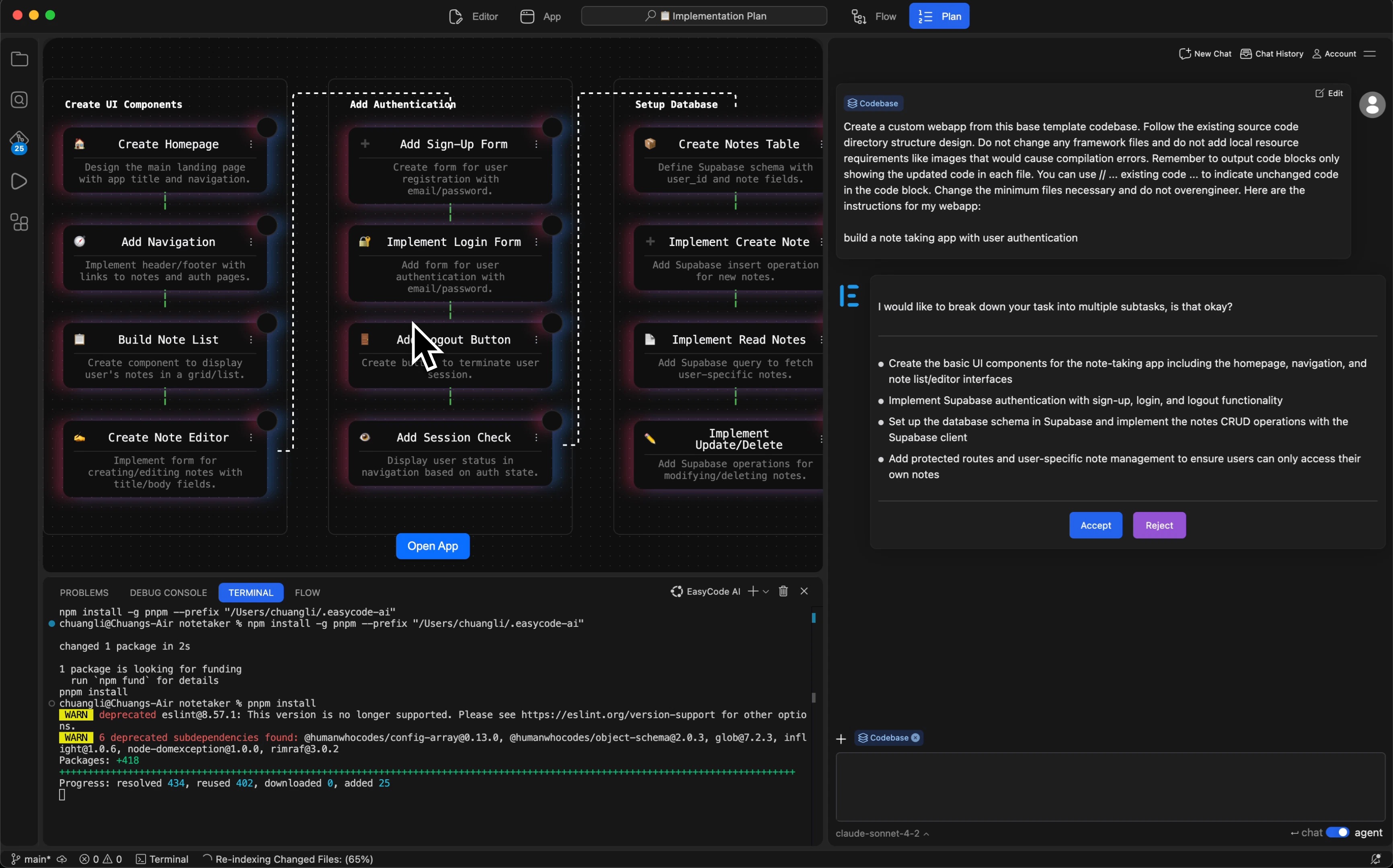 EasyCode's **Planning Mode** can be triggered at 2 different levels:
* **Project level**: break down a large idea into features, user flows, API integrations etc.
* **Feature level**: scope out a feature into techinical steps, with order of implementation.
There are 2 ways to activate Planning Mode\*\*:\*\*
1. Automatic Mode
2. Manual Mode
It's critical to take the time to **review AI generated plans**. \
\
Otherwise, there may be a difference between what you have in mind, and what the AI thinks you are trying to build - causing many issues during testing and validation.
## Automatic Planning Mode
At the start of every new chat, including the very first prompt, EasyCode Agent will assess the complexity & vagueness of your prompt.
If it deems the prompt is either too complex, or too vague, it will enter planning mode.
EasyCode's **Planning Mode** can be triggered at 2 different levels:
* **Project level**: break down a large idea into features, user flows, API integrations etc.
* **Feature level**: scope out a feature into techinical steps, with order of implementation.
There are 2 ways to activate Planning Mode\*\*:\*\*
1. Automatic Mode
2. Manual Mode
It's critical to take the time to **review AI generated plans**. \
\
Otherwise, there may be a difference between what you have in mind, and what the AI thinks you are trying to build - causing many issues during testing and validation.
## Automatic Planning Mode
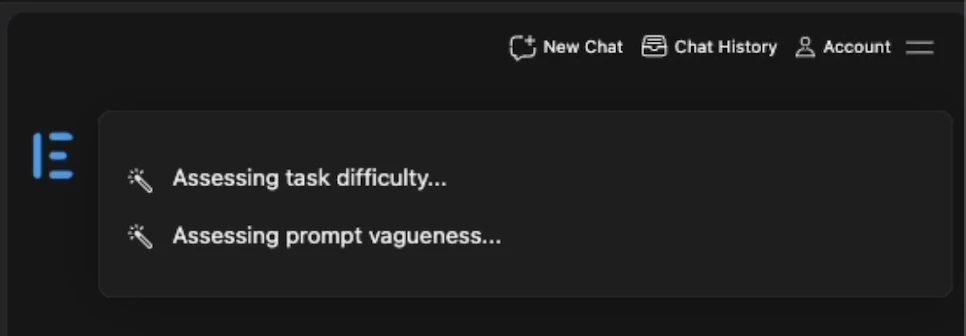
At the start of every new chat, including the very first prompt, EasyCode Agent will assess the complexity & vagueness of your prompt.
If it deems the prompt is either too complex, or too vague, it will enter planning mode.
 ## Manual Planning Mode
To activte planning manually, simply tell the AI to
> Create a plan to \_\_\_\_\_\_\_
This will cause the AI to enter planning mode, and create a `plan.md` which you can modify directly or chat with the AI to modify.
To see a diagram of the plan, click **View Visualization** at the bottom right.
## Manual Planning Mode
To activte planning manually, simply tell the AI to
> Create a plan to \_\_\_\_\_\_\_
This will cause the AI to enter planning mode, and create a `plan.md` which you can modify directly or chat with the AI to modify.
To see a diagram of the plan, click **View Visualization** at the bottom right.